Most of you are probably aware that there are only so many ways to pivot, or conduct lateral movement to a Windows system. Some of those techniques include psexec, WMI, at, Scheduled Tasks, and WinRM (if enabled). Since there are only a handful of techniques, more mature defenders are likely able to prepare for and detect attackers using them. Due to this, I set out to find an alternate way of pivoting to a remote system.
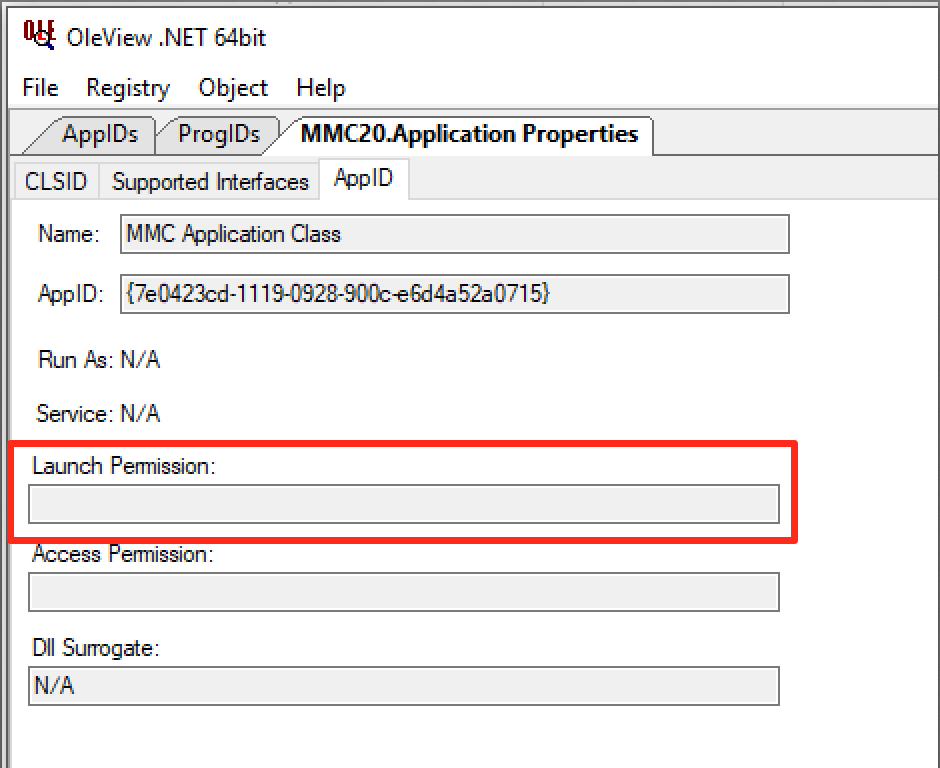
This resulted in identifying the MMC20.Application COM object and its “ExecuteShellCommand” method, which you can read more about here. Thanks to the help of James Forshaw (@tiraniddo), we determined that the MMC20.Application object lacked explicit “LaunchPermissions”, resulting in the default permission set allowing Administrators access:
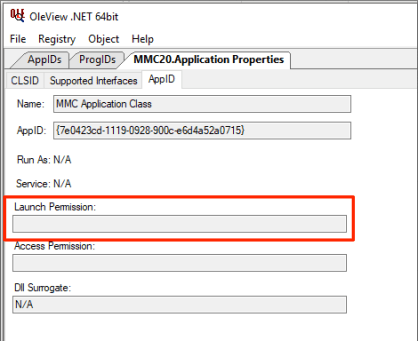
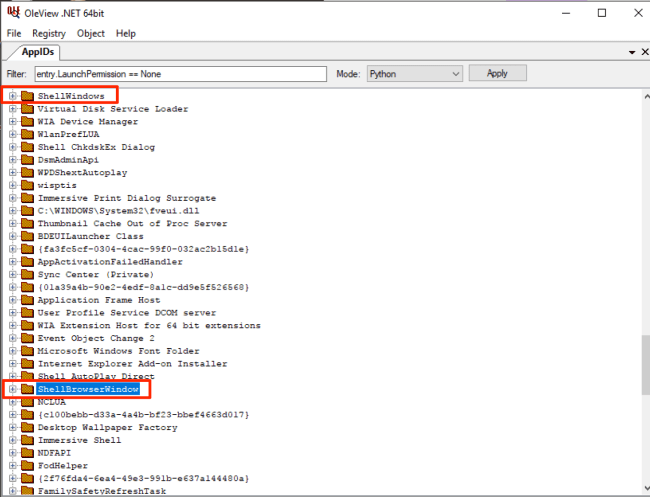
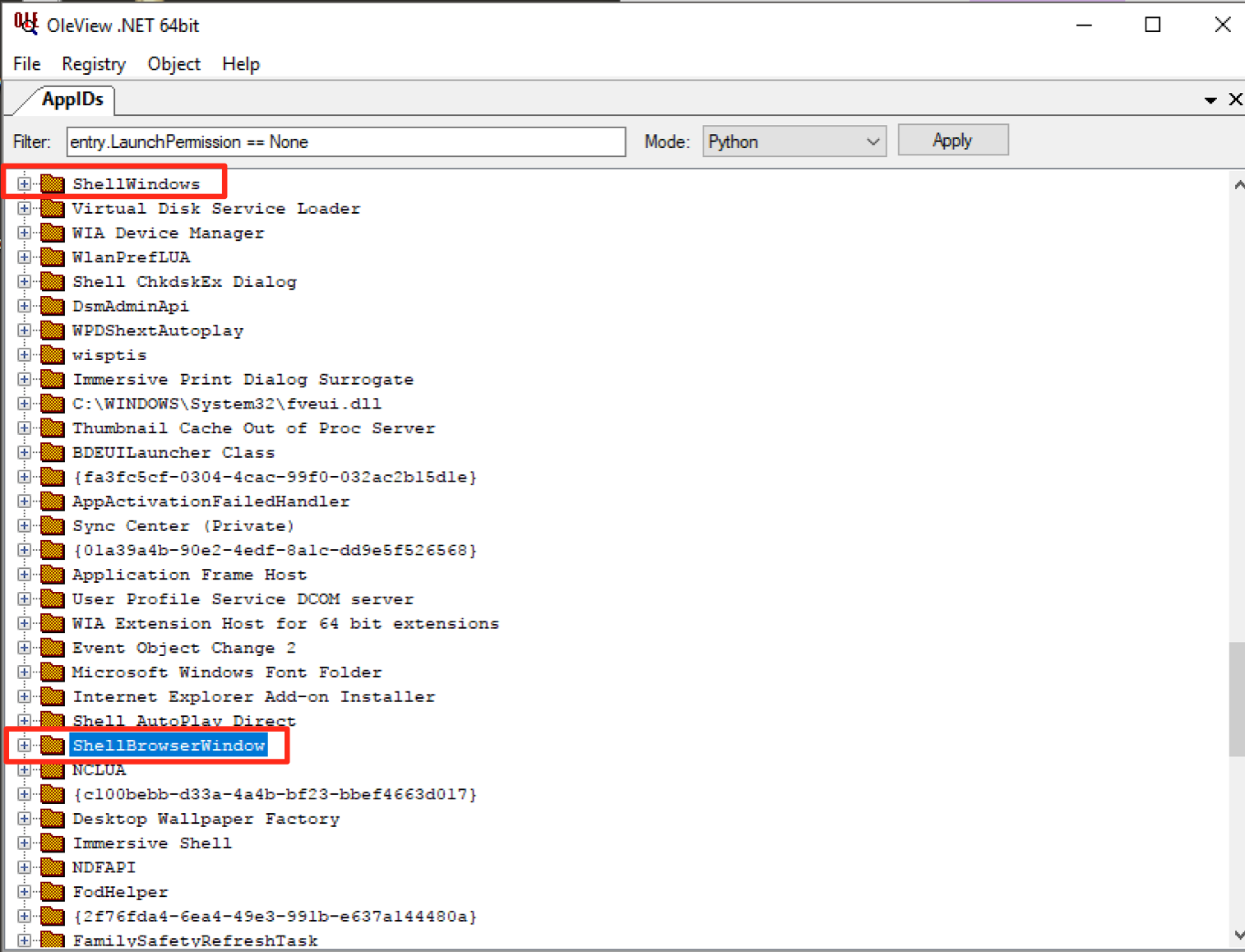
You can read more on that thread here. This got me thinking about other objects that have no explicit LaunchPermission set. Viewing these permissions can be achieved using @tiraniddo’s OleView .NET, which has excellent Python filters (among other things). In this instance, we can filter down to all objects that have no explicit Launch Permission. When doing so, two objects stood out to me: “ShellBrowserWindow” and “ShellWindows”:
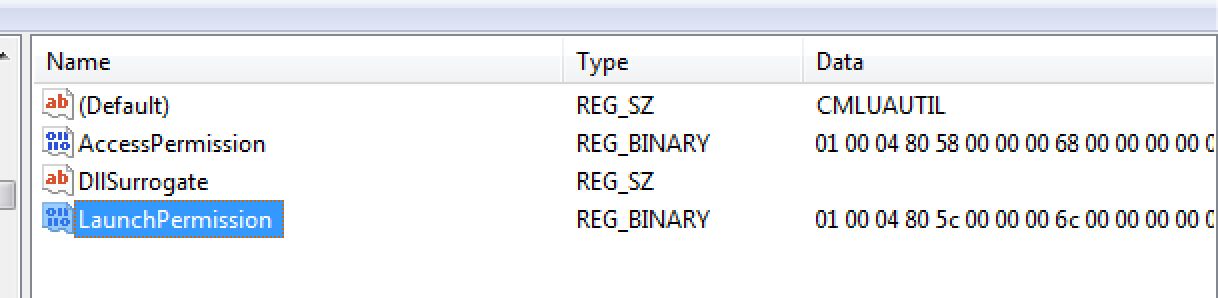
Another way to identify potential target objects is to look for the value “LaunchPermission” missing from keys in HKCR:\AppID\{guid}. An object with Launch Permissions set will look like below, with data representing the ACL for the object in Binary format:
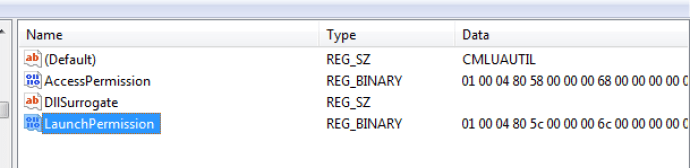
Those with no explicit LaunchPermission set will be missing that specific registry entry.
The first object I explored was the “ShellWindows” instance. Since there is no ProgID associated with this object, we can use the Type.GetTypeFromCLSID .NET method paired with the Activator.CreateInstance method to instantiate the object via its AppID on a remote host. In order to do this, we need to get the AppID CLSID for the ShellWindows object, which can be accomplished using OleView .NET as well:
[Edit] Thanks to @tiraniddo for pointing it out, the instantiation portions should have read “CLSID” instead of “AppID”. This has been corrected below.
[Edit] Replaced screenshot of AppID wit CLSID
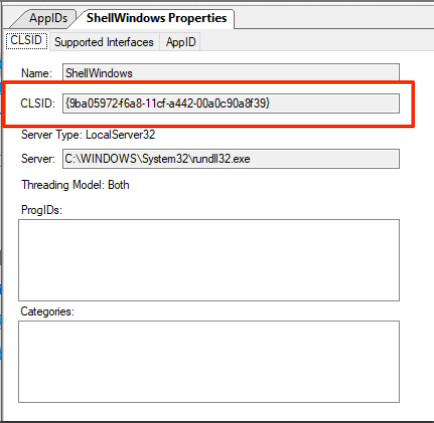
As you can see below, the “Launch Permission” field is blank, meaning no explicit permissions are set.
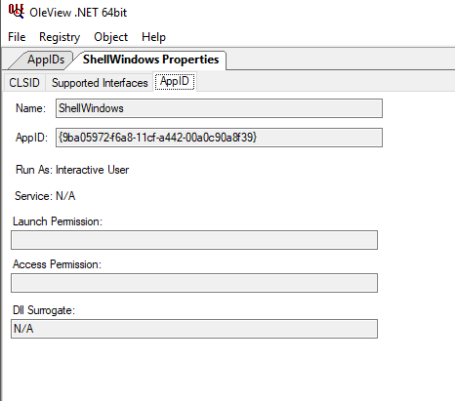
Now that we have the AppID CLSID, we can instantiate the object on a remote target:

With the object instantiated on the remote host, we can interface with it and invoke any methods we want. The returned handle to the object reveals several methods and properties, none of which we can interact with. In order to achieve actual interaction with the remote host, we need to access the WindowsShell.Item method, which will give us back an object that represents the Windows shell window:
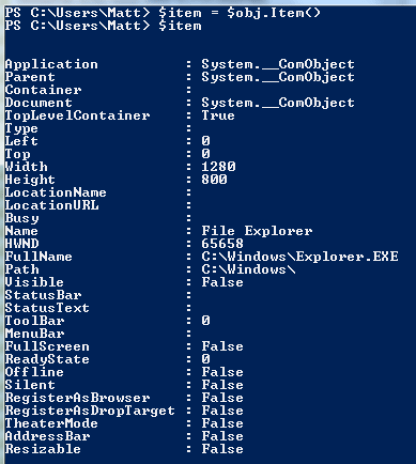
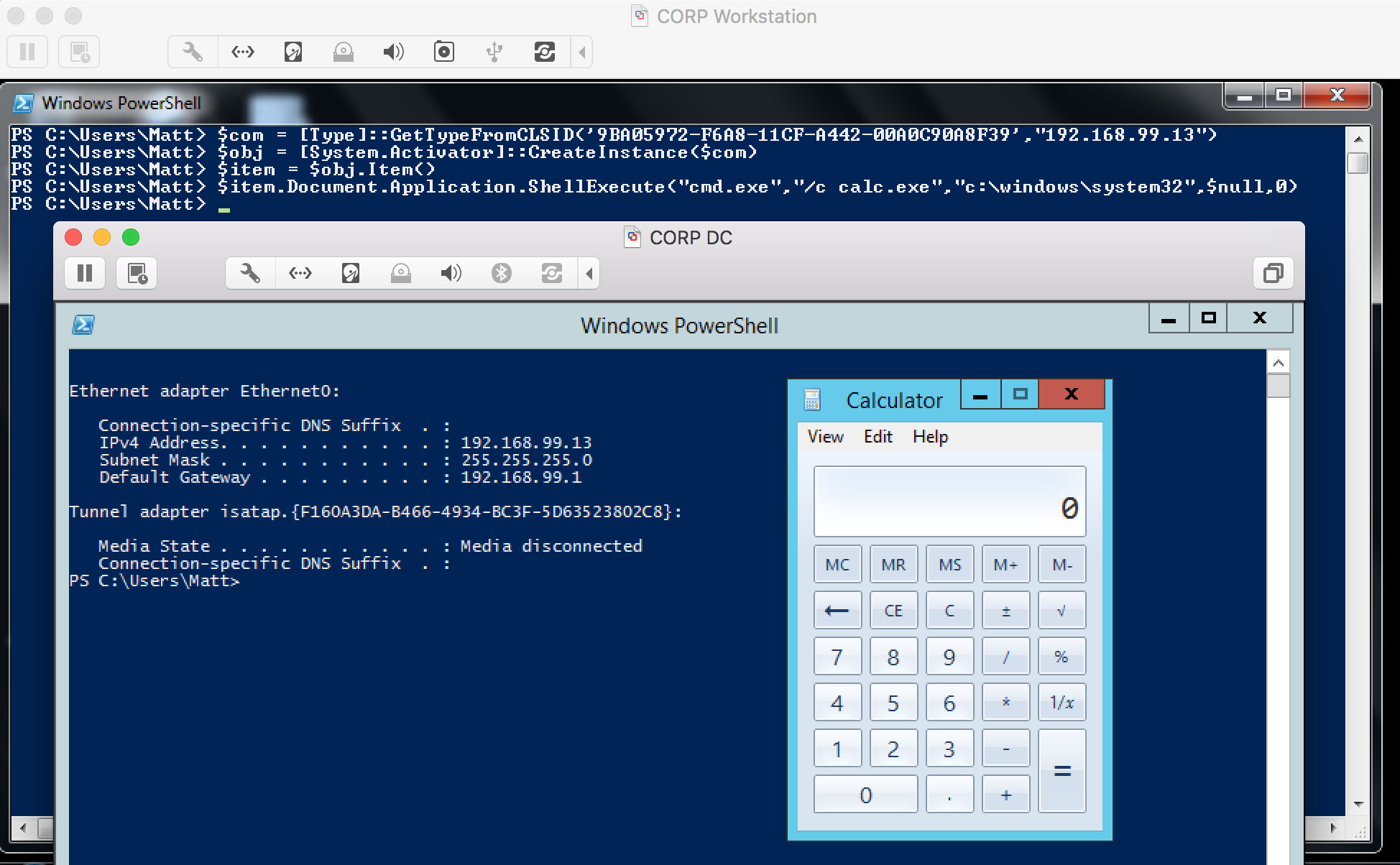
With a full handle on the Shell Window, we can now access all of the expected methods/properties that are exposed. After going through these methods, “Document.Application.ShellExecute” stood out. Be sure to follow the parameter requirements for the method, which are documented here.

As you can see above, our command was executed on a remote host successfully.
Now that the “ShellWindows” object was tested and validated, I moved onto the “ShellBrowserWindow” object. One of the first things I noticed was that this particular object does not exist on Windows 7, making its use for lateral movement a bit more limited than the “ShellWindows” object, which I tested on Win7-Win10 successfully. Since the “ShellBrowserWindow” object was tested successfully on Windows 10-Server 2012R2, it should be noted as well.
I took the same enumeration steps on the “ShellBrowserWindow” object as I did with the “ShellWindows” object. Based on my enumeration of this object, it appears to effectively provide an interface into the Explorer window just as the previous object does. To instantiate this object, we need to get its AppID CLSID. Similar to above, we can use OleView .NET:
[Edit] Replaced screenshot of AppID wit CLSID
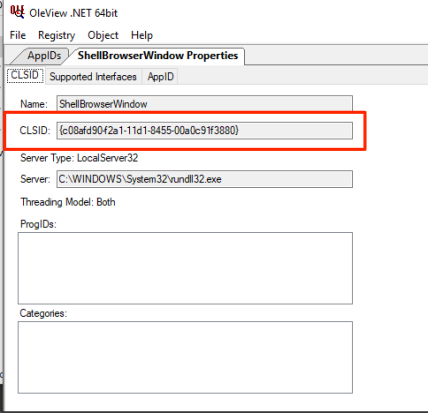
Again, take note of the blank Launch Permission field 🙂

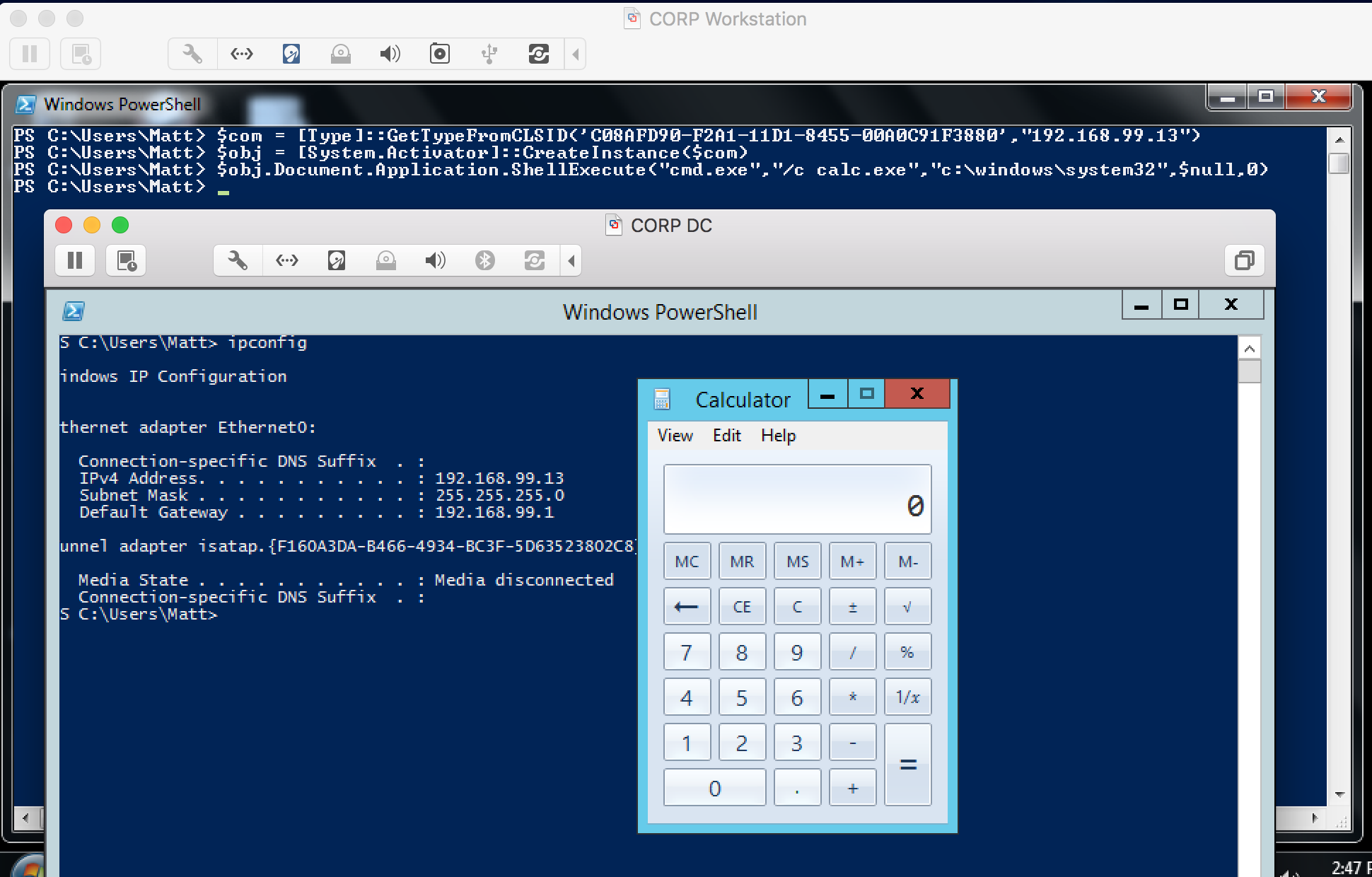
With the AppID CLSID, we can repeat the steps taken on the previous object to instantiate the object and call the same method:
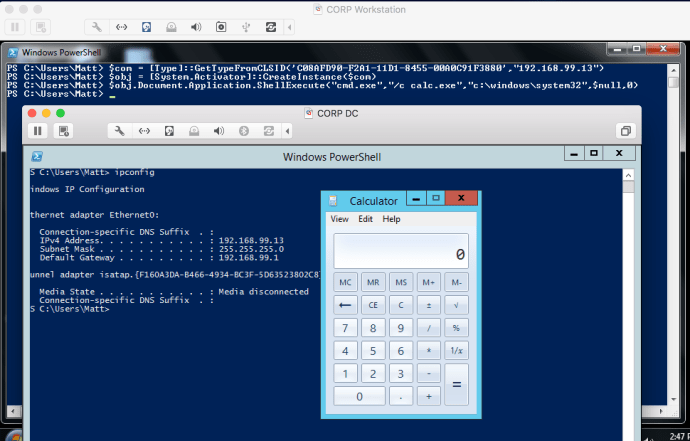
As you can see, the command successfully executed on the remote target.
Since this object interfaces directly with the Windows shell, we don’t need to invoke the “ShellWindows.Item” method, as on the previous object.
While these two DCOM objects can be used to run shell commands on a remote host, there are plenty of other interesting methods that can be used to enumerate or tamper with a remote target. A few of these methods include:
- Document.Application.ServiceStart()
- Document.Application.ServiceStop()
- Document.Application.IsServiceRunning()
- Document.Application.ShutDownWindows()
- Document.Application.GetSystemInformation()
Defenses
You may ask, what can I do to mitigate or detect these techniques? One option is to enable the Domain Firewall, as this prevents DCOM instantiation by default. While this mitigation works, there are methods for an attacker to tamper with the Windows firewall remotely (one being remotely stopping the service).
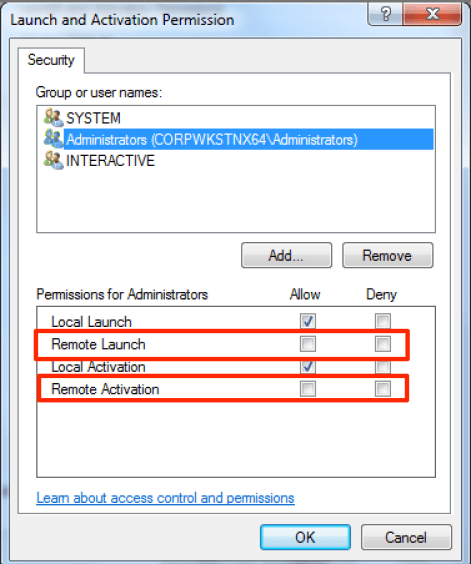
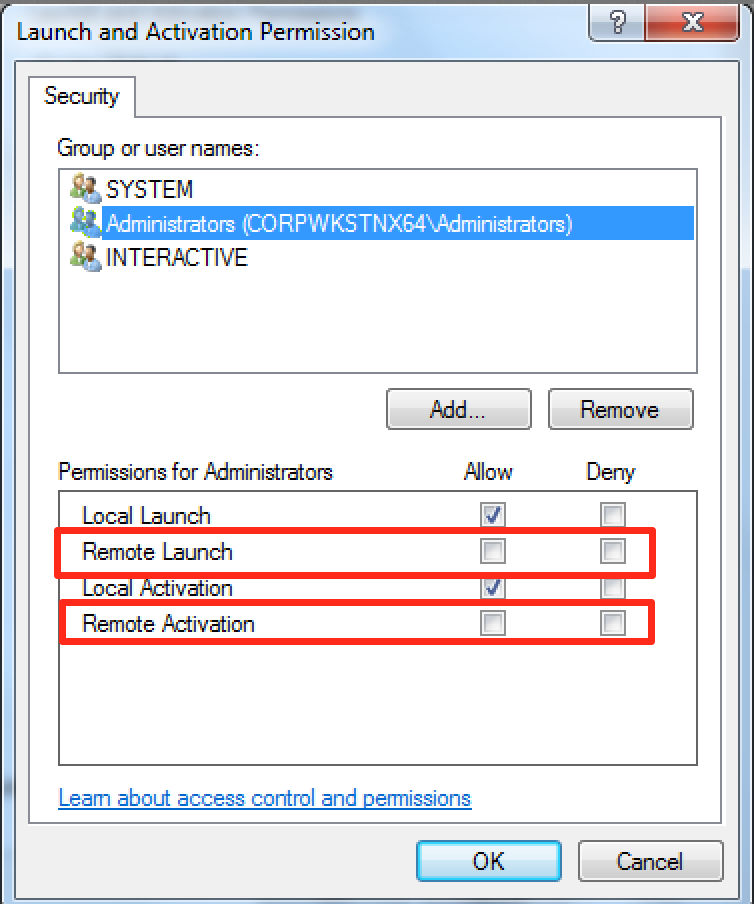
There is also the option of changing the default “LaunchPermissions” for all DCOM objects via dcomncfg.exe by right clicking on “My Computer”, selecting “Properties” and selecting “Edit Default” under “Launch and Activation Permissions”. You can then select the Administrators group and uncheck “Remote Launch” and “Remote Activation”:
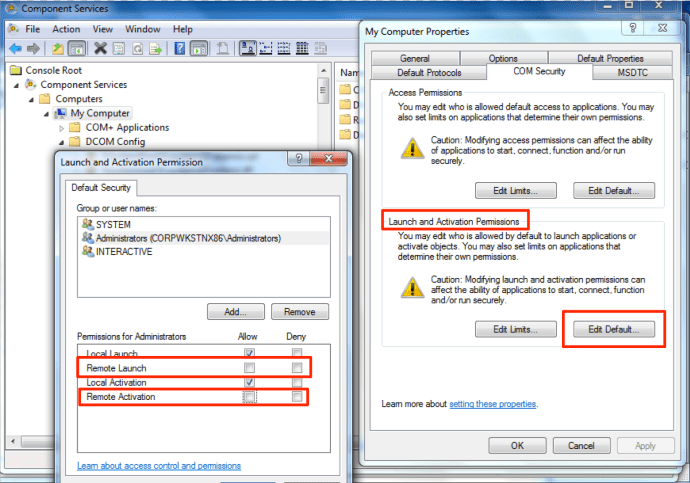
Attempted instantiation of an object results in “Access Denied”:

You can also explicitly set the permissions on the suspect DCOM objects to remove RemoteActivate and RemoteLaunch permissions from the Local Administrators group. To do so, you will need to take ownership of the DCOM’s HKCR AppID key, change the permissions via the Component Services MMC snap-in and then change the ownership of the DCOM’s HKCR AppID key back to TrustedInstaller. For example, this is the process of locking down the “ShellWindows” object.
First, take ownership of HKCR:\AppID\{9BA05972-F6A8-11CF-A442-00A0C90A8F39}. The GUID will be the AppID of the DCOM object; finding this was discussed above. You can achieve this by going into regedit, right click on the key and select “permissions”. From there, you will find the “ownership” tab under “advanced”.
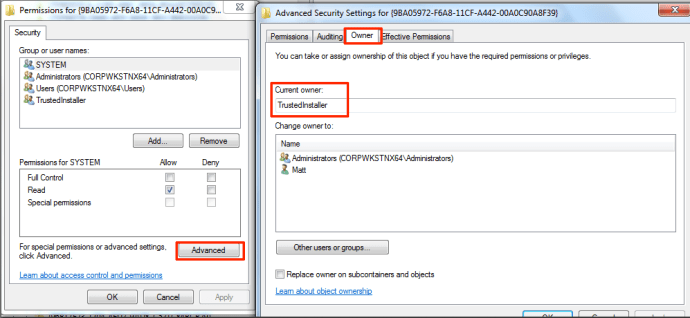
As you can see above, the current owner is “TrustedInstaller”, meaning you can’t currently modify the contents of the key. To take ownership, click “Other Users or Groups” and add “Administrators” if it isn’t already there and click “Apply”:
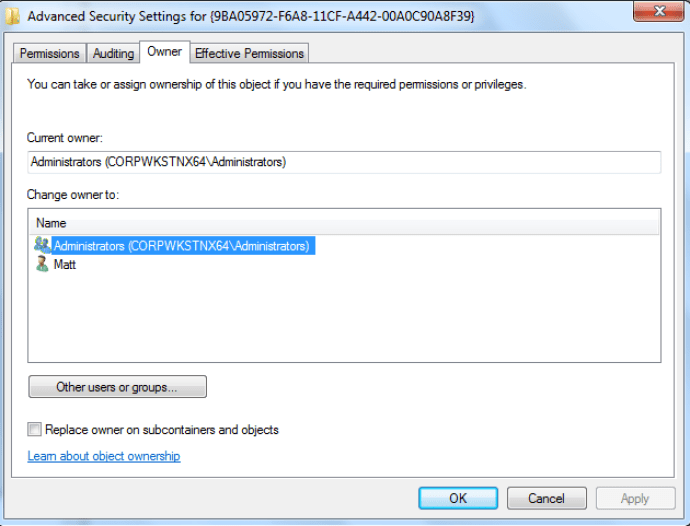
Now that you have ownership of the “ShellWindows” AppID key, you will need to make sure the Administrators group has “FullControl” over the AppID key of the DCOM object. Once done, open the “Component Services” MMC snap-in, browse to “ShellWindows”, right click on it and select “Properties”. To modify the Remote Activation and Launch permissions, you will need to go over to the “Security” tab. If you successfully took ownership of AppID key belonging to the DCOM object, the radio buttons for the security options should *not* be grayed out.
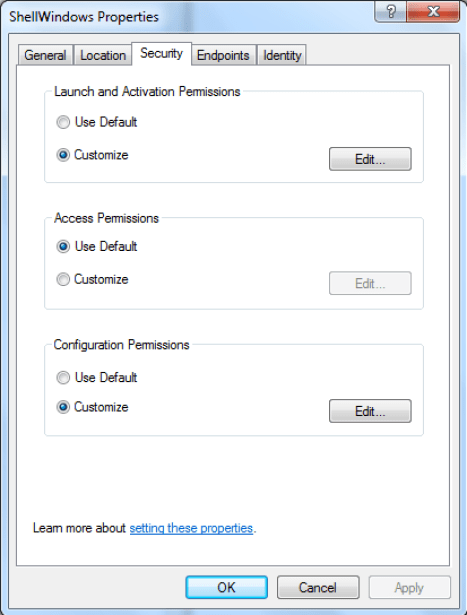
To modify the Launch and Activation permissions, click the “edit” button under the “Launch and Activation Permissions” section. Once done, select the Administrators group and uncheck “Remove Activation” and “Remote Launch”. Click “Ok” and then “Apply” to apply the changes.
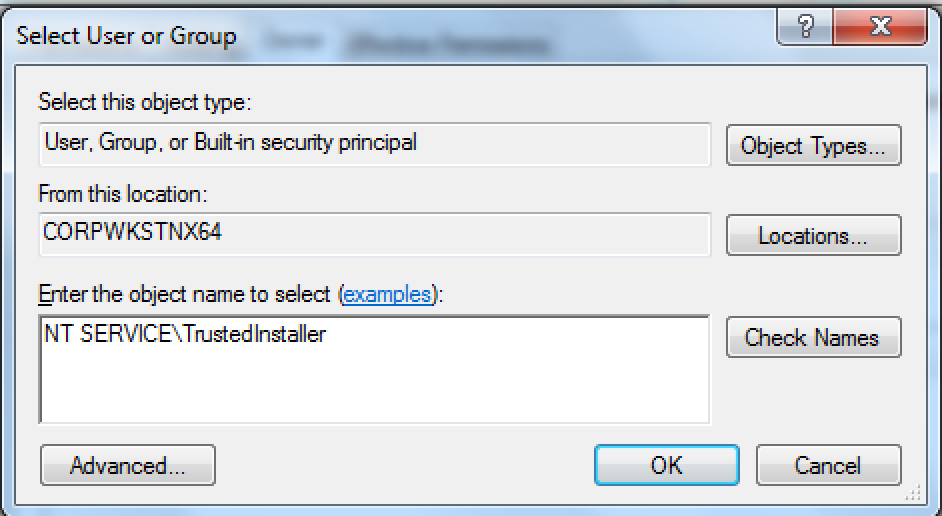
Now that the Remote Activation and Launch permissions have been removed from the Administrators group, you will need to give ownership of the AppID key belonging to the DCOM object back to the TrustedInstaller account. To do so, go back to the HKCR:\AppID\{9BA05972-F6A8-11CF-A442-00A0C90A8F39} registry key and navigate back to the “Other Users and Groups” section under the owner tab. To add the TrustedInstaller account back, you will need to change the “Location” to the local host and enter “NT SERVICE\TrustedInstaller” as the object name:

Click “OK” and then “Apply” to change the owner back.
One important note: Since we added “Administrators” the “FullControl” permission to the AppID key belonging to the DCOM object, it is critical to remove that permission by unchecking the “FullControl” box for the Administrators group. Since the updated DCOM permissions are stored as “LaunchPermission” under that key, an attacker can simply delete that value remotely, opening the DCOM object back up if not properly secured.
After making these changes, you should see that instantiation of that specific DCOM object is no longer allowed remotely:

Keep in mind that while this mitigation does restrict the launch permissions of the given DCOM object, an attacker could theoretically remotely take ownership of the key and disable the mitigation since it is stored in the registry.
There is the option of disabling DCOM, which you can read about here. I have not tested to see if this breaks anything at scale, so proceed with caution.
As a reference, the three DCOM objects I have found that allows for remote code execution are as follows:
MMC20.Application (Tested Windows 7, Windows 10, Server 2012R2)
AppID: 7e0423cd-1119-0928-900c-e6d4a52a0715
ShellWindows (Tested Windows 7, Windows 10, Server 2012R2)
AppID: 9BA05972-F6A8-11CF-A442-00A0C90A8F39
ShellBrowserWindow (Tested Windows 10, Server 2012R2)
AppID: C08AFD90-F2A1-11D1-8455-00A0C91F3880
It should also be noted that there may be other DCOM objects allowing for similar actions performed remotely. These are simply the ones I have found so far.
Full Disclosure: I encourage anyone who implements these mitigations to test them extensively before integrating at scale. As with any system configuration change, it is highly encouraged to extensively test it to ensure nothing breaks. I have not tested these mitigations at scale.
As for detection, there are a few things you can look for from a network level. When running the execution of this technique through Wireshark, you will likely see an influx of DCERPC traffic, followed by some indicators.
First, when the object is instantiated remotely, you may notice a “RemoteGetClassObject” request via ISystemActivator:

Following that, you will likely see “GetTypeInfo” requests from IDispatch along with “RemQueryInterface” requests via IRemUnknown2:

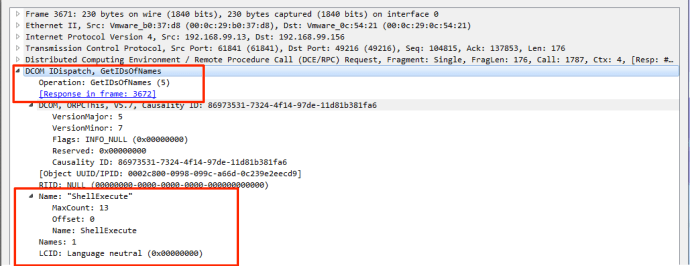
While this may, in most cases, look like normal DCOM/RPC traffic (to an extent), one large indicator of this technique being executed will be in a request via IDispatch of GetIDsofNames for “ShellExecute”:
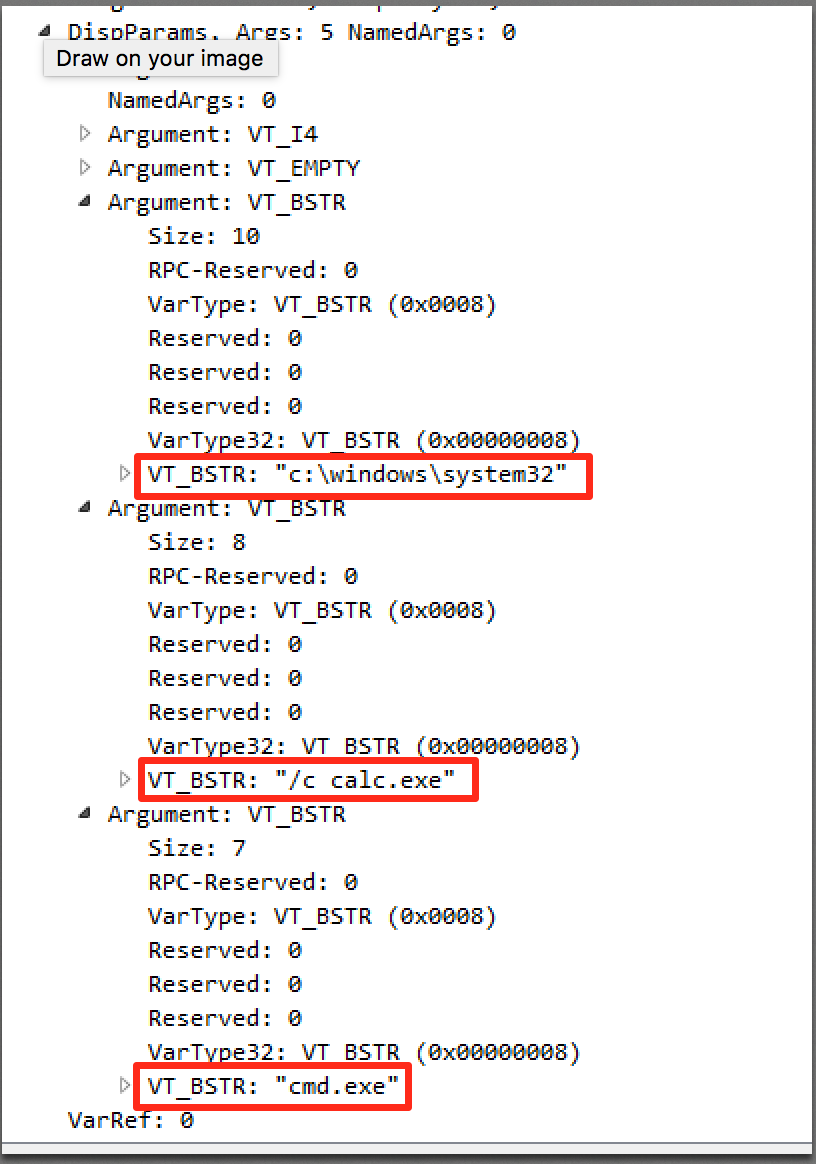
Immediately following that request, you will see a treasure trove of useful information via an “Invoke Request”, including *exactly* what was executed via the ShellExecute method:
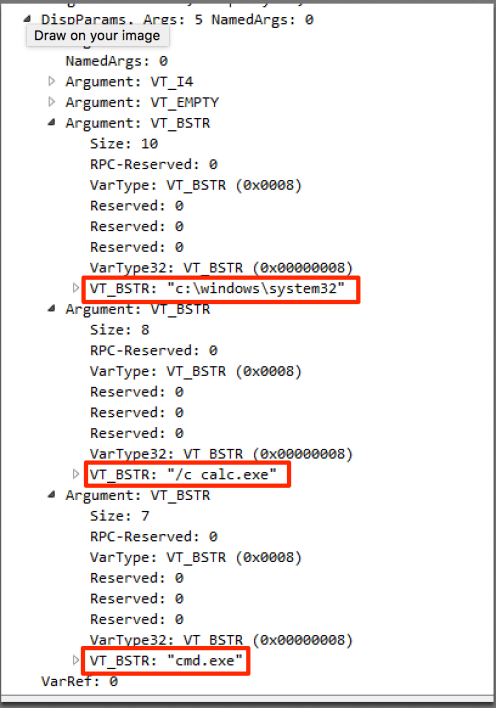
That will immediately be followed by the response code of the method execution (0 being success). This is what the actual execution of commands via this method looks like:

Cheers!
Matt N.














 enigma0x3